
Comparison
Best dual camera app for iPhone: 4K at 30 fps, 60 fps Action Cam, free
For most people the answer is SplitRig, and this guide earns that claim instead of just making it: the honest landscape of every dual-camera app, where each rival genuinely wins, and exactly what works on your model, iPhone 11 and later.
In short
The best dual camera app for iPhone is SplitRig: up to 4K at 30 fps on supported iPhones and 60 fps at 1080p in Action Cam. It records the front and rear cameras at once into one synced video, free, with no subscription, no in-app purchases, no ads, and no account. It works on every iPhone from iPhone 11 on, and gives every model the full feature set: four layouts (Picture in Picture, Split Screen, Single Camera, Face Mode background removal), seven live metrics burned into the video, an Apple Watch companion, and an AirPods remote. Apple's built-in Dual Capture is limited to iPhone 17 and later, so on iPhone 11 through 16 a free app like SplitRig is how you record both cameras. The optional SplitRig logo comes off free in one tap.
Free · no subscription · no ads
rear camera
at 30 fps on supported iPhones
Action Cam

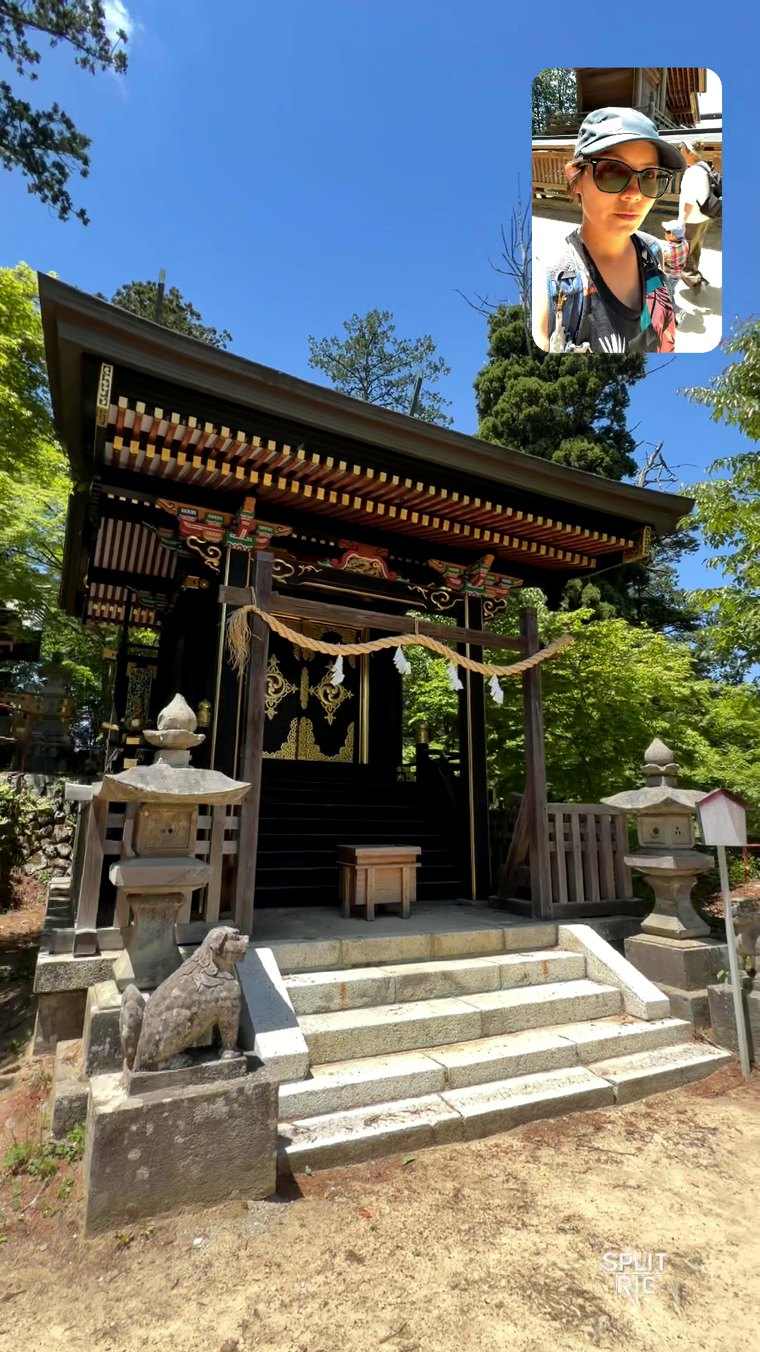

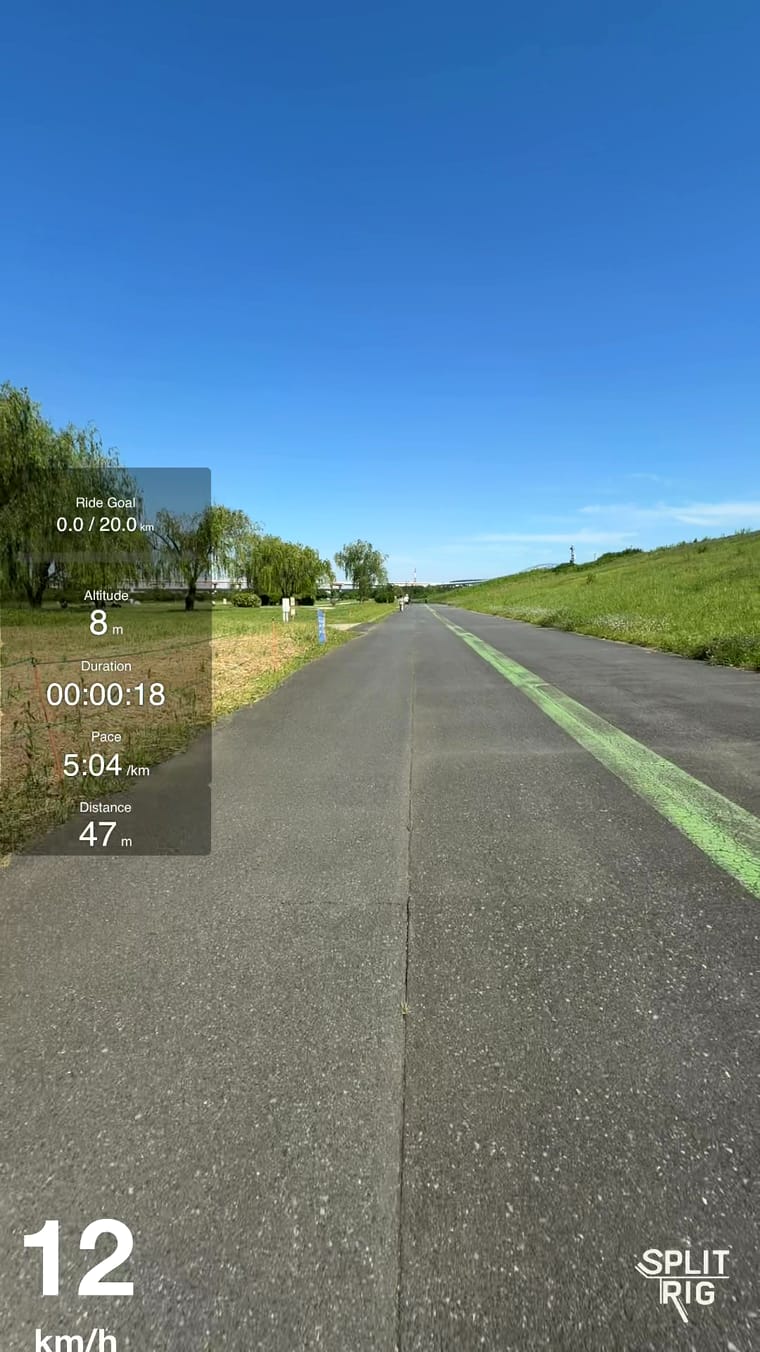
"Best" still depends a little on what you are recording and which phone you hold. This guide gives you the honest landscape (including where other apps win), a per-model breakdown so you can see exactly what works on your iPhone, and the one question that decides it: do you want to record, or do you want an app that also edits?
What makes a dual camera app "the best"
Most dual-camera apps clear the basic bar: front and rear at once. The differences that actually matter, ranked by how often they bite creators:
- Does it cost money to get a clean export? Some "free" apps watermark your video, limit how long you can record, or charge for the layout you want. Read the App Store listing before you commit. The best app gives you a usable, full-length, logo-free result for free.
- Does it run on your iPhone? Apple's own built-in dual-camera mode only exists on the newest phones. The best app meets you on the model you have.
- How many layouts, and can you switch live? Picture in Picture is table stakes. Split Screen, a true single-camera mode, and background removal widen what you can make.
- Is it built for a long shoot? Two cameras are heavy work. The best app runs on a recording engine tuned for the iPhone, and saves your video as it records.
- What does it do beyond recording? Live GPS overlays, hardware-button and Apple Watch control, on-device privacy. The extras separate a recorder you keep from one you delete.
SplitRig is built around exactly these. It is a dedicated recorder written natively in Swift, free with every feature unlocked, four layouts you can switch mid-shot, a smart recording engine tuned for smooth, pro-grade video, seven live metrics burned into the video, and full on-device privacy. By design it records rather than edits: one finished video, ready to post or to open in the editor you already use.
Dual camera apps compared, spec by spec
SplitRig
- Max resolution
- 4K at 30 fps, 40 Mbps, rear camera on supported iPhonesthe Picture in Picture or Split Screen file is 4K; the front keeps its own resolution
- Frame rates
- 24 or 30 fps; 60 fps at 1080p in Action Cam24 fps is the cinematic, coolest-running choice
- Saved file
- One synced file, straight to Photos as recorded (.mov)no export step, no re-compression
- Layouts
- Picture in Picture, Split Screen, Face Mode, Single CameraPicture in Picture as a Rectangle or a Circle; Face Mode: live background removal, any photo as backdrop; Split Screen 30 to 70%
- Lenses
- Every lens and zoom level, 0.5x ultra wide to telephotoon iPhones that have those lenses; Action Cam supports 0.5x
- Stabilization
- Off, Standard or Stable on the rear, chosen per modeAction Cam uses the iPhone's top tier; a 16:9 front is always stabilized
- Teleprompter
- Built in; script visible only to you, never in the video
- Audio
- USB-C and Lightning mics, wireless kits via receiver, 48 kHzhot-swap mid-recording; music keeps playing
- Hands-free control
- Apple Watch app, AirPods shutter, Camera Control, volume buttonsAirPods Pro 2, AirPods 4 or AirPods Pro 3 on iOS 26; Camera Control on iPhones with it
- Live overlays
- Seven live metrics burned in: GPS speedometer, pace, distance, altitude and morealso duration, sound level and goal gauge, plus the SplitRig logo
- Long-shoot performance
- Smart recording engine, tuned with Apple's native camera featuresfor pro-grade performance, with no time limit
- Crash-safe saving
- Written as it records; interrupted takes return on a recovery card2 s fragments: a take is kept up to its last couple of seconds
- Time limit
- No time limit, at any resolution
- Focus and exposure
- Tap to focus, exposure slider, hold to lock focus and exposure
- Watermark
- SplitRig logo, removable free in one tap
- Price
- Free; no subscription, no in-app purchases, every feature works from first launch
- Ads
- No ads
- Account and privacy
- No account; no tracking, everything stays on the iPhone
- Devices
- iPhone 11 and later, iOS 26 or later
Apple Dual Capture
- Max resolution
- 4K Dolby Vision at 30 fps
- Frame rates
- 24 or 30 fps
- Saved file
- One video file
- Layouts
- One movable picture-in-picture layout
- Lenses
- Not stated
- Stabilization
- Not stated
- Teleprompter
- Not stated
- Audio
- Not stated
- Hands-free control
- Not stated for Dual Capture
- Live overlays
- Not stated
- Long-shoot performance
- Not stated
- Crash-safe saving
- Not stated
- Time limit
- Not stated
- Focus and exposure
- Not stated
- Watermark
- None
- Price
- Included with iOS, iPhone 17 onward
- Ads
- None
- Account and privacy
- No account needed
- Devices
- iPhone 17 and later, including iPhone Air
2Camera
- Max resolution
- markets 4K and 1080p; dual-mode not stated
- Frame rates
- markets 24, 30 or 60 fps; dual-mode not stated
- Saved file
- Not statedfront, back and merged files are listed for photos
- Layouts
- Picture in picture, split screen (top/bottom or left/right), single camera
- Lenses
- Pinch or volume-key zoom; lens choice not stated
- Stabilization
- Standard, Cinematic or Enhanced
- Teleprompter
- Built in, adjustable speed, size, position and color
- Audio
- AAC or Apple Lossless, mono or stereo; external mics not stated
- Hands-free control
- Volume-key shutter and zoom; Camera Control quick launch
- Live overlays
- Data stamp: time, location, altitude, speed, pace, distancelisted as a video watermark feature
- Long-shoot performance
- Not stated
- Crash-safe saving
- Not stated
- Time limit
- Not stated
- Focus and exposure
- Exposure adjustment on both cameras, focus lock while recording
- Watermark
- Not statedits video watermark feature is a data stamp, not branding
- Price
- Pro $0.99 / month, $4.99 / year, $8.99 lifetimefree download; what Pro unlocks is not stated in the listing
- Ads
- Not statedno 'Contains Advertising' label on the US listing
- Account and privacy
- Not stated
- Devices
- iPhone XS / XR and later, iOS 17.1 or later
2Cam Front+Back
- Max resolution
- markets 720p, 1080p or 4K; dual-mode not statedlisting: 'Certain features require Premium access'
- Frame rates
- markets 24, 30 or 60 fps; dual-mode not stated
- Saved file
- One file
- Layouts
- Picture in picture, several shapes; 9:16, 4:3 or 1:1
- Lenses
- Not stated
- Stabilization
- One stabilization toggle
- Teleprompter
- Built in; scrolling script over the preview
- Audio
- Audio quality setting; external mics not stated
- Hands-free control
- Volume buttons
- Live overlays
- Not stated
- Long-shoot performance
- Not stated
- Crash-safe saving
- Not stated
- Time limit
- Users report about 4 free videos, then a paywalluser-reported (review 2026-05-28); a clip count, not a time
- Focus and exposure
- Not stated
- Watermark
- The free version saves with its watermark; removing it takes a paid plan
- Price
- Premium $5.99 or $7.99 / week, $9.99 / month, $39.99 / year
- Ads
- Not statedno 'Contains Advertising' label; a 2026-08-18 check found no ads
- Account and privacy
- Not stated
- Devices
- iPhone XS / XR and later, iOS 15.2 or later
MixCam
- Max resolution
- Not stated
- Frame rates
- Not stated
- Saved file
- Not stated
- Layouts
- Full screen with live camera switching; MixOver mode
- Lenses
- Center Stage front camera; rear lenses not stated
- Stabilization
- Action Mode
- Teleprompter
- Not stated
- Audio
- Not stated
- Hands-free control
- Not stated
- Live overlays
- Not stated
- Long-shoot performance
- Not stated
- Crash-safe saving
- Not stated
- Time limit
- Users report a free cap of 3 to 7 minutesuser-reported (reviews 2023-06, 2024-10); the listing states no cap
- Focus and exposure
- Not stated
- Watermark
- The free version adds its watermark; removing it takes a paid plan
- Price
- $1.99 / week, $9.99 / month, $49.99 Pro Camera, $2.99 to remove the watermarkfree to record; the $9.99 monthly plan is Business
- Ads
- Not statedno 'Contains Advertising' label on the US listing
- Account and privacy
- Not stated
- Devices
- iPhone XS / XR and later, iOS 15 or later
DoubleTake
- Max resolution
- 1080p, its stated multi-cam maximum
- Frame rates
- 24, 25 or 30 fps
- Saved file
- One composite file or separate files per camera
- Layouts
- Movable PiP or 50/50 split screen
- Lenses
- Any front and rear lens pair, ultra wide and tele included
- Stabilization
- Not stated
- Teleprompter
- Not stated
- Audio
- Not stated
- Hands-free control
- Not stated
- Live overlays
- Not stated
- Long-shoot performance
- Not stated
- Crash-safe saving
- Not stated
- Time limit
- Not stated
- Focus and exposure
- Set and lock focus and exposure on each camera
- Watermark
- Not stated
- Price
- Subscription: $0.99 or $1.49 / week, $19.99 / year, plus bundlesfree download; bundles $4.99 and $9.99 / week, $99.99 / year
- Ads
- Not statedno 'Contains Advertising' label on the US listing
- Account and privacy
- Not stated
- Devices
- iPhone XS / XR and later, iOS 14.1 or later
Dualgram
- Max resolution
- markets up to 4K; dual-mode not stated
- Frame rates
- markets up to 60 fps; dual-mode not stated
- Saved file
- Three files: front, rear and the composite
- Layouts
- Movable picture in picture or split screen 1:1 or 1:2some layouts are locked on the free tier (its FAQ)
- Lenses
- Optical and digital zoom
- Stabilization
- Cinematic stabilization
- Teleprompter
- Listed as a feature
- Audio
- Not stated
- Hands-free control
- Not stated
- Live overlays
- Not stated
- Long-shoot performance
- Not stated
- Crash-safe saving
- Not stated
- Time limit
- Not stated
- Focus and exposure
- Not stated
- Watermark
- On the free tier; removed with PRO
- Price
- PRO $8.99 / year or $29.99 to unlock
- Ads
- Ads on the free tierlisting label: Contains Advertising
- Account and privacy
- Not stated
- Devices
- iPhone XR and later, iOS 17 or later
DualCam
- Max resolution
- markets up to 4K; dual-mode not statedHEVC or ProRes, MOV or MP4 (listing)
- Frame rates
- markets 24, 30 or 60 fps; dual-mode not stated
- Saved file
- Two synced files: 9:16 and 16:9
- Layouts
- PiP preview while recording; composite layouts not stated
- Lenses
- Two rear lenses at once: wide plus ultra wide or telefront and back at once is not stated in the listing; its site says so
- Stabilization
- Not stated
- Teleprompter
- Not stated
- Audio
- Not stated
- Hands-free control
- Not stated
- Live overlays
- Not stated
- Long-shoot performance
- Not stated
- Crash-safe saving
- Not stated
- Time limit
- Not stated
- Focus and exposure
- Not stated
- Watermark
- Not stated
- Price
- $0.99 / week, $9.99 / year, $14.99 lifetimefree download; what the plans unlock is not stated in the listing
- Ads
- Not statedno 'Contains Advertising' label on the US listing
- Account and privacy
- Sign-in used for in-app uploadswhether recording needs an account is not stated
- Devices
- iPhone XS and later, iOS 18 or laterdual-lens mode needs multiple rear cameras
DualCapture
- Max resolution
- markets up to 4K with Premium; dual-mode not stated
- Frame rates
- markets up to 60 fps; dual-mode not stated
- Saved file
- Five files: front, back, merged, 9:16 and 16:9
- Layouts
- Picture in picture or split screen; Premium adds every layout
- Lenses
- Not stated
- Stabilization
- Not stated
- Teleprompter
- Not stated
- Audio
- Stereo audio; external mics not stated
- Hands-free control
- Not stated
- Live overlays
- Not stated
- Long-shoot performance
- Not stated
- Crash-safe saving
- Not stated
- Time limit
- No time limit on recordings (listing)
- Focus and exposure
- Not stated
- Watermark
- None on any export (listing)
- Price
- Premium $0.99 / week, $2.99 / month, $19.99 / year, $39.99 lifetimerecording and saving are free; Premium adds 4K, every layout and unlimited exports
- Ads
- Not statedno 'Contains Advertising' label on the US listing
- Account and privacy
- Not stated
- Devices
- iPhone 15 and later, iOS 18 or later
Detail
- Max resolution
- 4K export listed; capture resolution not stated
- Frame rates
- Not stated
- Saved file
- Edited project export
- Layouts
- Live switching between angles; split-screen reactionsfront and rear on one iPhone is not stated explicitly
- Lenses
- Not stated
- Stabilization
- Not stated
- Teleprompter
- AI Director, a teleprompter that listens as you speak
- Audio
- Not stated
- Hands-free control
- Apple Watch app: start and stop recording, show or hide the teleprompter, pause or play itwatchOS 10.0 minimum
- Live overlays
- Overlays listed for live streams and editing
- Long-shoot performance
- Not stated
- Crash-safe saving
- Not stated
- Time limit
- Users report a 20-minute maximum lengthuser-reported (review 2025-08-03); the listing states no limit
- Focus and exposure
- Not stated
- Watermark
- On free recordings; removed with Pro
- Price
- Pro $11.99 / month, $69.99 or $49.99 / year, $4.99 / weekfree to record with a watermark; legacy plans $8.99 to $39.99
- Ads
- Not statedno 'Contains Advertising' label on the US listing
- Account and privacy
- Not stated
- Devices
- iOS 17 or later, A12 Bionic chip or later
Other apps: details checked 2026-09-24 – 2026-10-16.
The honest landscape: the main dual-camera apps
Every one of these records both cameras. Here is where each genuinely fits, with the comparison pages for the full breakdowns.
- SplitRig (free). The most full-featured free option: up to 4K at 30 fps on the rear camera of supported iPhones, 60 fps at 1080p in Action Cam, four layouts, seven live metrics burned into the video, and Apple Watch + AirPods control. No recording time limit, and it saves as it records. Optional logo off in one tap. iPhone 11 and later, iOS 26.
- Apple Dual Capture (free, built in). Apple's own Camera-app mode. Zero install, but iPhone 17 and later only (iPhone 17, 17 Pro, 17 Pro Max, iPhone Air, iPhone 18 Pro and 18 Pro Max), with one movable picture-in-picture layout. The most convenient choice if you own one of those phones and only need a quick PiP clip.
- DoubleTake by Bending Spoons, originally made by FiLMiC (free to download, now with optional in-app purchases). Reliable and Apple-featured, but minimal: two layouts, no overlays, no Apple Watch. It supports older iPhones and iOS versions than SplitRig, so it is the pick if you are below iOS 26.
- Detail (freemium). An AI-first recorder and editor for iPhone, iPad, and Mac. Records dual-camera video for free, but every free export carries a Detail watermark that only Pro, a paid subscription, removes. Best if you want the AI editing suite (captions, auto-clips, reframe).
- MixCam (free to download, with in-app purchases). MixCam's free version adds its watermark; removing it takes a paid plan. Users report a free recording cap.
- Dualgram (freemium). Picture in picture and split screen with a teleprompter, and it can save each camera as its own file, but the free tier has ads and a watermark you pay to remove.
- 2Cam Front+Back (free to download). The simplest option: two basic layouts, fine for a one-off shot, though the free tier watermarks your video and puts full use behind a subscription.
- BeautyCam by Meitu (free with VIP subscription). A beauty camera and photo editor that includes a dual-camera mode, referenced in its Korean App Store subtitle. Fixed PiP layout, no split screen. Strong as a beautifier; dual-camera recording is a secondary feature.
What is free in each app (as of 2026-10-19)
Each row quotes the app's own website or App Store listing, read on 2026-10-19. Prices are the US App Store list.
| App | Free, in its own words | Paid plans |
|---|---|---|
| SplitRig | Every feature works from the first launch; the SplitRig logo is optional: keep it to support us, or turn it off free in one tap | None: no subscription, no in-app purchases |
| Apple Dual Capture | Everything, in the Camera app on iPhone 17 and later | None (included with iOS) |
| DualShot Recorder | Basic: "1080p at 30 fps", "MP4 output", "Up to 1 minute per clip", "Standard DualShot watermark" | Advanced: $1.99 a month or $9.99 a year |
| DualCam | Free to download; Pro unlocks "all features including full dual camera recording" | $0.99 a week, $9.99 a year, $14.99 lifetime |
| Lookout | Free to download; the listing does not say what Lookout Pro unlocks | Lookout Pro, $2.99 |
| MixCam | Free to download; its price list includes "Remove Watermark" | $1.99 a week, $9.99 a month (Business), $49.99 Pro Camera, $2.99 Remove Watermark |
| 2Cam | "Certain features require Premium access"; its price list includes "Remove watermark from video" | $5.99 or $7.99 a week, $9.99 a month, $39.99 a year, $5.99 watermark removal |
| Detail | Basic: "Unlimited watermark video exports" | Pro: $4.99 a week, $11.99 a month, $49.99 or $69.99 a year |
For a deeper look at the strongest free options specifically, see the best free dual camera app for iPhone.
The best dual camera app for your iPhone, model by model
This is the part most "best app" lists skip. Whether an iPhone can record both cameras at once at all is a hardware question, and whether Apple's built-in mode is available is a model question. The good news: every iPhone that runs iOS 26 (iPhone 11 and later) can run SplitRig, and gets the full feature set. Here is the honest situation for each model.
One pattern holds across the whole list: Apple's built-in Dual Capture only works on iPhone 17 and later (iPhone 17, 17 Pro, 17 Pro Max, iPhone Air, iPhone 18 Pro, and iPhone 18 Pro Max). Newer apps such as DualCapture need an iPhone 15 or later and put 4K behind Premium, while SplitRig includes up to 4K on the rear camera free, on supported iPhones. So on anything before the iPhone 17, a free app like SplitRig is the most direct way to record both cameras at once, and on an iPhone 11 through 14 it means you do not have to upgrade your phone or pay to do it.
iPhone 11 (11, 11 Pro, 11 Pro Max)
SplitRig records both cameras at once, free, on your iPhone 11. Apple's built-in Dual Capture is not available this far back, and the newer paid dual-camera apps generally require iPhone 15 or later, so a free app is how you get it. You do not need a new iPhone and you do not need to pay. iPhone 11 is the oldest model SplitRig supports, and it gets every feature.
iPhone 12 (12 mini, 12, 12 Pro, 12 Pro Max)
SplitRig records front and rear together, free, on every iPhone 12 model including the 12 mini. Apple's Camera app cannot do dual capture on an iPhone 12, so SplitRig fills the gap with four layouts, plus live GPS overlays and Apple Watch control. No upgrade, no subscription.
iPhone 13 (13 mini, 13, 13 Pro, 13 Pro Max)
SplitRig records both cameras at the same time, free, on any iPhone 13. Apple's built-in Dual Capture needs an iPhone 17 or later, so on your 13 a free app is the way to do it, and Face Mode's live background removal works on every iPhone 13 too. Every layout and overlay is unlocked.
iPhone 14 (14, 14 Plus, 14 Pro, 14 Pro Max)
SplitRig records front and rear into one synced video, free, on every iPhone 14. This is squarely in "you do not need to upgrade, and you do not need to pay" territory: Apple's native dual capture is limited to iPhone 17 and later, and the newer paid apps lean toward iPhone 15 and up, so SplitRig is the clean free route on a 14.
iPhone 15 (15, 15 Plus, 15 Pro, 15 Pro Max)
SplitRig records both cameras at once, free, on any iPhone 15. Some newer paid apps start supporting dual capture at the iPhone 15, but they charge or watermark to remove it; SplitRig gives you the full feature set free, and Apple's own built-in Dual Capture still will not run on a 15 (it runs on iPhone 17 and later). On iPhone 15 Pro, SplitRig also switches to the telephoto rear lens mid-recording.
iPhone 16 (16, 16 Plus, 16 Pro, 16 Pro Max, 16e)
SplitRig records front and rear together, free, on every iPhone 16, including the iPhone 16e. The iPhone 16 line adds the Camera Control button, which SplitRig integrates fully: click to start and stop, light-press-and-slide to zoom. Apple's built-in Dual Capture is still not available on the 16, so a free app remains the way to record both cameras at once on this model.
iPhone 17 (17, 17 Pro, 17 Pro Max, iPhone Air)
On iPhone 17 and later you finally have a choice: Apple's built-in Dual Capture works here, with no install. It is the most convenient option for a quick clip, in one movable picture-in-picture layout. SplitRig still earns a place on these phones for what it adds: four layouts, 60 fps in Action Cam, seven live metrics burned into the video, and the same app on every iPhone from iPhone 11 on. Its smart recording engine, tuned with Apple's native camera features, is built for smooth, pro-grade video. See the full SplitRig vs Apple Dual Capture breakdown, and for the Pro-specific features, the best dual camera app for iPhone 17 Pro.
If your iPhone is older than iPhone 11
iPhone XS, XS Max, and XR can capture from two cameras at once at the hardware level, but they cannot run iOS 26, which SplitRig requires, so it is not available on them. On those models, an app that supports older iOS versions, such as DoubleTake, is the realistic route to dual-camera recording.
So which should you pick?
The decision comes down to one question, then your model.
- Do you want to record, or record and AI-edit? If you want auto-captions, auto-clips, and reframe done for you, look at Detail (subscription) and accept the watermark or the Pro fee. If you want the cleanest free recording with no upsell, that is SplitRig.
- On iPhone 11 through 16: SplitRig is the most full-featured free way to record both cameras at once, because Apple's built-in mode is not available and the newer paid apps charge or watermark. No upgrade required.
- On iPhone 17 and later: use Apple Dual Capture for a quick picture-in-picture clip with zero install; use SplitRig when you need Split Screen, Face Mode, 60 fps in Action Cam, live overlays burned into the video, or long recordings with no time limit.
- Below iOS 26: SplitRig will not install. DoubleTake supports older iPhones.
What you actually get with SplitRig, free
- Both cameras, one synced video. Front and rear captured together in a single recording and written to one video file as you record, not stitched in post.
- Five ways to record. Picture in Picture, Split Screen, Face Mode, Single Camera and Action Cam. New in Picture in Picture: the small picture can be a circle or a rectangle, chosen in Layout, and it records into your video as you see it.
- A built-in teleprompter. Read your script on screen while you record, visible only to you and never in the saved video.
- Smart Pause. Need to leave the app mid-take? Your recording pauses for a short time; come back soon and it goes on by itself in the same file.
- Eight overlay widgets baked into the recording: seven live metrics (GPS speedometer, distance, altitude, pace, goal gauge, sound level, duration) plus the SplitRig logo.
- Up to 4K on the rear camera on supported iPhones, inside one dual-camera video, recorded at 40 Mbps in HEVC at 30 fps.
- Action Cam mode at 60 fps with the steadiest stabilization level, for high-motion footage.
- Full on-device privacy. No account, no cloud, no analytics tied to you. Your video and location never leave the iPhone.
Get started in 60 seconds
- Install SplitRig from the App Store. Free, no payment method needed.
- Open it and grant camera and microphone access. Optional: location, for the GPS overlays.
- Tap Layout in the bottom bar and pick one: Picture in Picture, Split Screen, Single Camera, or Face Mode.
- Tap the red shutter (or press Volume Down, or click the iPhone 16 Camera Control button). Tap again to stop. Both cameras save to Photos in one synced video.
For the full walkthrough, see how to record both cameras on iPhone at once.
Frequently asked questions
What is the best dual camera app?
On iPhone, the best dual camera app is SplitRig. It records the front and rear cameras at the same time into one synced video on every iPhone from iPhone 11 on, with the full feature set on every model: five ways to record (Picture in Picture, Split Screen, Face Mode background removal, Single Camera and Action Cam), seven live metrics burned into the video, an Apple Watch app and an AirPods remote. It is free, with no subscription, no in-app purchases, no ads and no account, and the SplitRig logo comes off free in one tap.
Which iPhones does SplitRig work on?
SplitRig runs on every iPhone that can run iOS 26: iPhone 11 and later, including the 12 mini, the 13 mini, the 14 Plus, the 15 Plus, the iPhone 16e and iPhone Air. All of them get the same feature set for free, with no stripped-down tier for older phones. iPhone XS, XS Max and XR have the multi-camera hardware but cannot run iOS 26, so SplitRig does not install on them; an app that still runs on older iOS, like DoubleTake, is the route there.
Do I need an iPhone 17 to record both cameras at once?
No. Apple's built-in Dual Capture is the only part that needs one, and it is limited to iPhone 17, 17 Pro, 17 Pro Max, iPhone Air, iPhone 18 Pro, and iPhone 18 Pro Max. On iPhone 11 through iPhone 16 a free app records both cameras at once instead, with no upgrade and no payment. On iPhone 17 and later you can use either: Dual Capture is quick, with one movable picture-in-picture layout, while SplitRig adds Split Screen, Face Mode, Single Camera, 60 fps in Action Cam and seven live metrics burned into the video.
Does SplitRig work with the iPhone 16 Camera Control button?
Yes, on the iPhone 16 and later models that carry the button. Click it to start and stop recording, or light-press and slide to zoom without touching the screen. Apple does not fit Camera Control to the iPhone 16e, but no supported iPhone is left without hands-free control: Volume Down starts and stops recording and Volume Up takes a screenshot on every model, and the Apple Watch app and the AirPods stem both work as remote shutters.
What video quality does SplitRig record in?
SplitRig records the rear camera in up to 4K inside one dual-camera video, on supported iPhones: 4K at 30 fps records at 40 Mbps in HEVC. The default, Full HD 1080p at 30 fps, records at 10 Mbps, and Action Cam records at 60 fps and 12 Mbps. The front camera records alongside it in up to Full HD 1080p. Every setting your iPhone offers is free, with no paid tier that unlocks more, all in Camera Settings.