
Tutorial
How to record both cameras on iPhone at once (free)
Record both iPhone cameras at the same time into one synced video, free, no editing, no subscription. Works on the iPhone you already have, from iPhone 11 up.
In short
To record both iPhone cameras at the same time, install SplitRig free from the App Store. Grant camera and microphone access, choose your layout (Picture in Picture, Split Screen, Single Camera, or Face Mode), and tap the red shutter. The front and rear feeds combine into one video file in real time (up to 4K on the rear in Picture in Picture or Split Screen, on supported iPhones), with no editing, no subscription, and no new iPhone needed. It works on every iPhone from iPhone 11 on.
Free · no subscription · no ads
Why you need an app for this (and which iPhones don't)
Which iPhones can record both cameras at once:
- iPhone 11 and later (iOS 26 or later): SplitRig records the front and rear cameras together, free, in four layouts.
- iPhone 17 and later: Apple's Camera app also has a built-in Dual Capture mode, in one picture-in-picture layout.
Before iPhone 17 the stock Camera app does not record both cameras at once, so SplitRig does it free on the iPhone already in your pocket. Not sure about your model? See can iPhone record the front and back camera at the same time.
Every iPhone that runs iOS 26 (iPhone 11 and later) has the hardware to do this; the stock Camera app just did not expose it until iPhone 17. So you need a dedicated app that captures both feeds at once and combines them into your chosen layout.
SplitRig captures both cameras together as you record and writes them into one video file in the same pass, so the result is genuinely synchronized. The two halves come from a single recording, not two clips lined up later.
The 60-second setup
- Install SplitRig from the App Store. It's free: no subscription, no in-app purchases.
- Open the app and grant camera + microphone permission. (Optional: location access if you want the GPS speedometer overlay.)
- Pick your layout: tap Layout in the bottom bar and choose Picture in Picture, Split Screen, Single Camera, or Face Mode.
- Tap the red shutter (or press Volume Down, or click your iPhone 16 Camera Control button). Recording starts immediately.
- Tap shutter again to stop. The file saves to Photos automatically: both camera feeds, in one synced video.
Picking the right layout
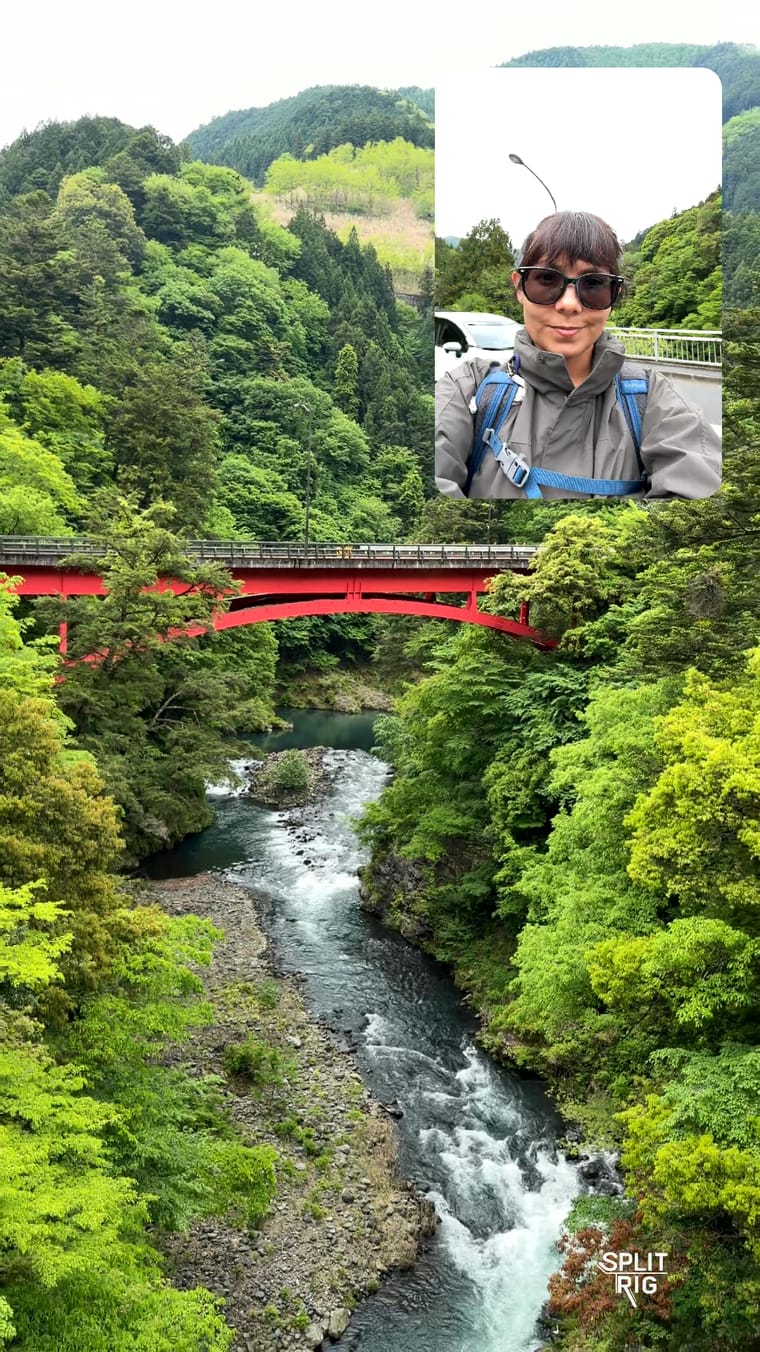
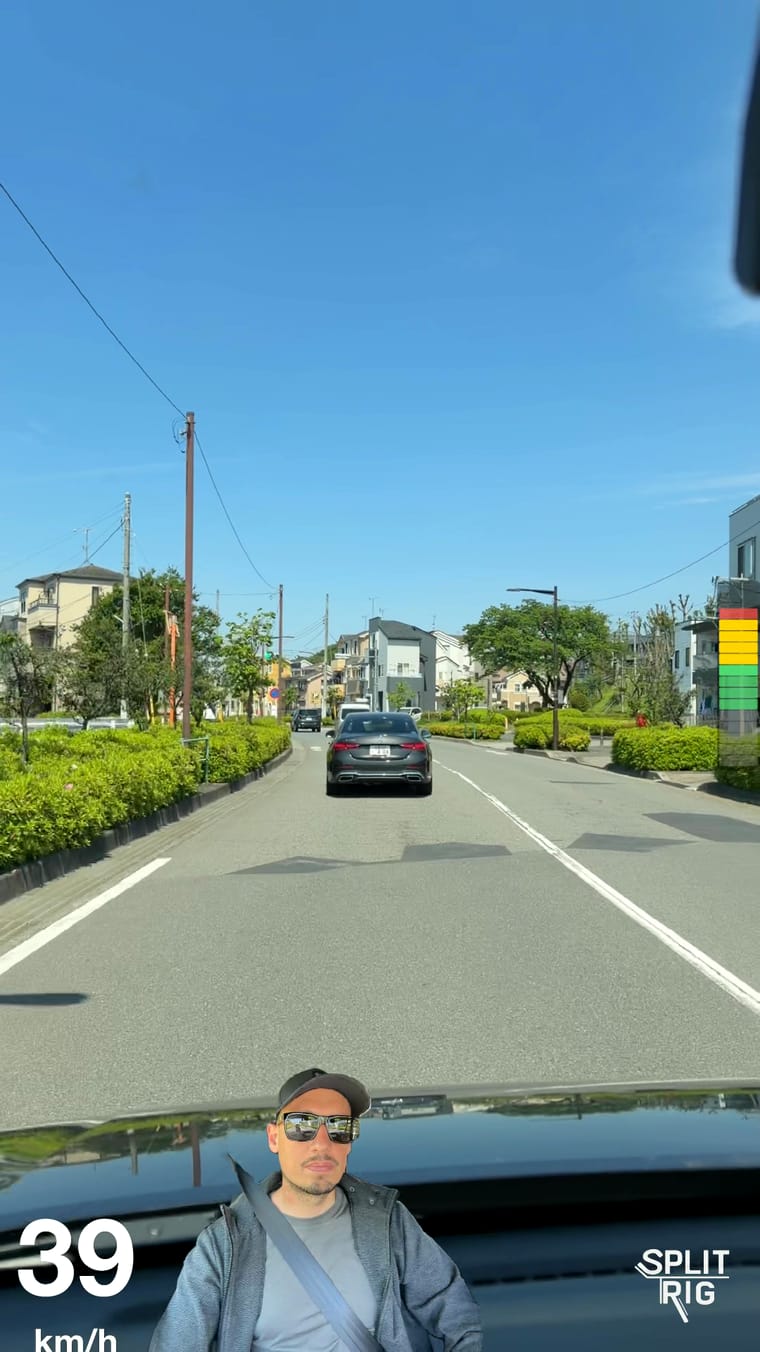
Picture in Picture: your face floats in a movable, resizable bubble over the main shot, as a Rectangle or a Circle. Best for vlogging while recording the world around you.
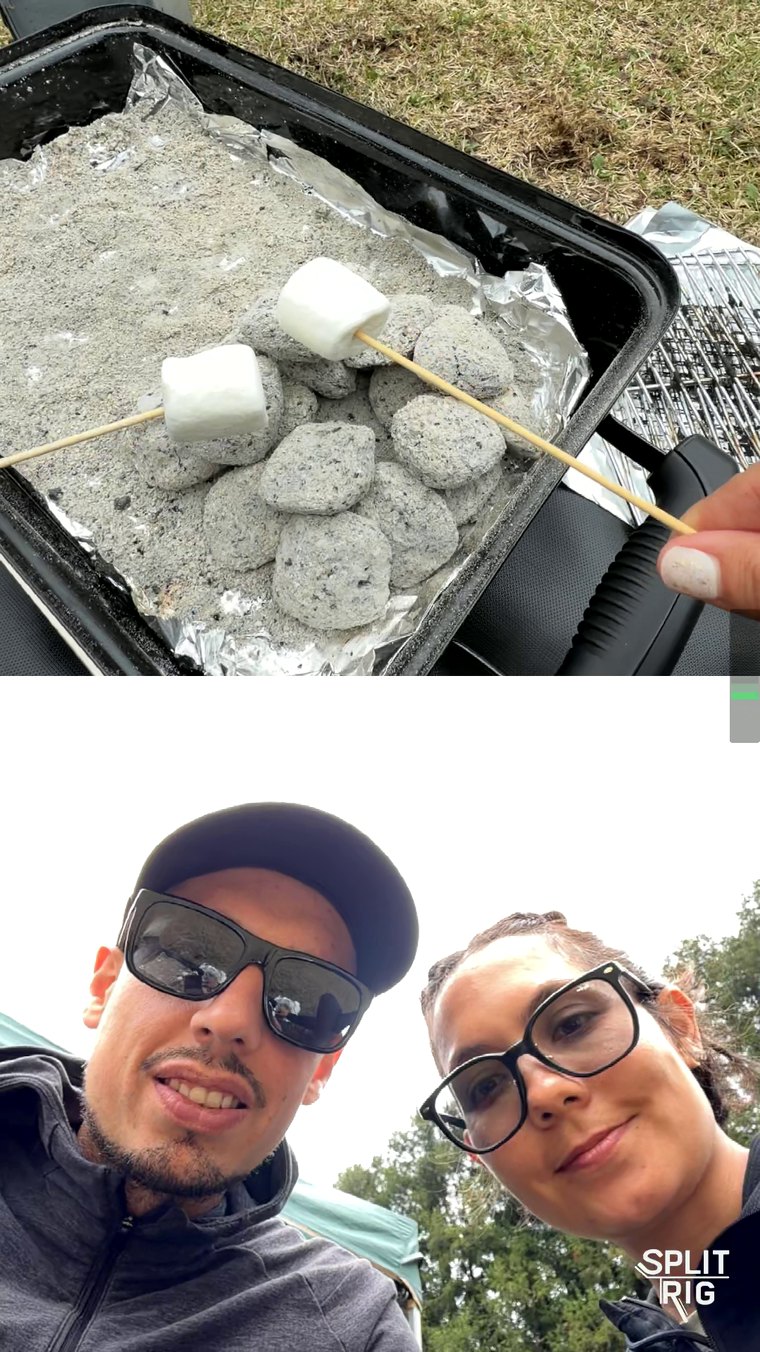
Split Screen: the screen splits between front and rear, with an adjustable 30–70% ratio. Best for interview-style content where both faces matter equally.
Face Mode: your background disappears live and only you stay, placed over the view of the back camera. Best when you want a "you talking over the action" look without a green screen.
Single Camera: full-screen rear camera with all the SplitRig overlays still available. Use this when you want one clean shot with the speedometer or activity widgets baked in.
Split camera on iPhone: how the split-screen layout works
If you searched for "split camera iPhone," what you usually want is the split-screen layout: the front and rear cameras side by side (or stacked) in one frame, both recording at once. SplitRig calls this Split Screen, one of the four free layouts: pick it under Layout in the bottom bar, then drag the divider to set the ratio anywhere from 30/70 to 70/30 so the camera that matters most gets more of the frame. The full guide is split screen camera on iPhone.
Because you are recording with both cameras at the same time, the two halves come from one recording: there is no second take to line up and no editing afterward. It is the cleanest way to put two points of view, your face and the scene, in a single shot. You can also flip the same recording to a split-screen Instagram Reel or a TikTok.
What you get out of the box
- Up to 4K on the rear camera on supported iPhones, Full HD 1080p at 30 fps by default, and 24 fps for a cinematic look. Quick Settings keeps them one tap away: tap Settings in the bottom bar to change resolution, frame rate and stabilization right on the camera screen.
- Action Cam mode automatically captures at 60 fps with the steadiest stabilization level for high-motion content.
- Your stabilization level (Off, Standard, or Stable while both cameras record) and a Session preset: Long Recording, Standard, or Quick Clip.
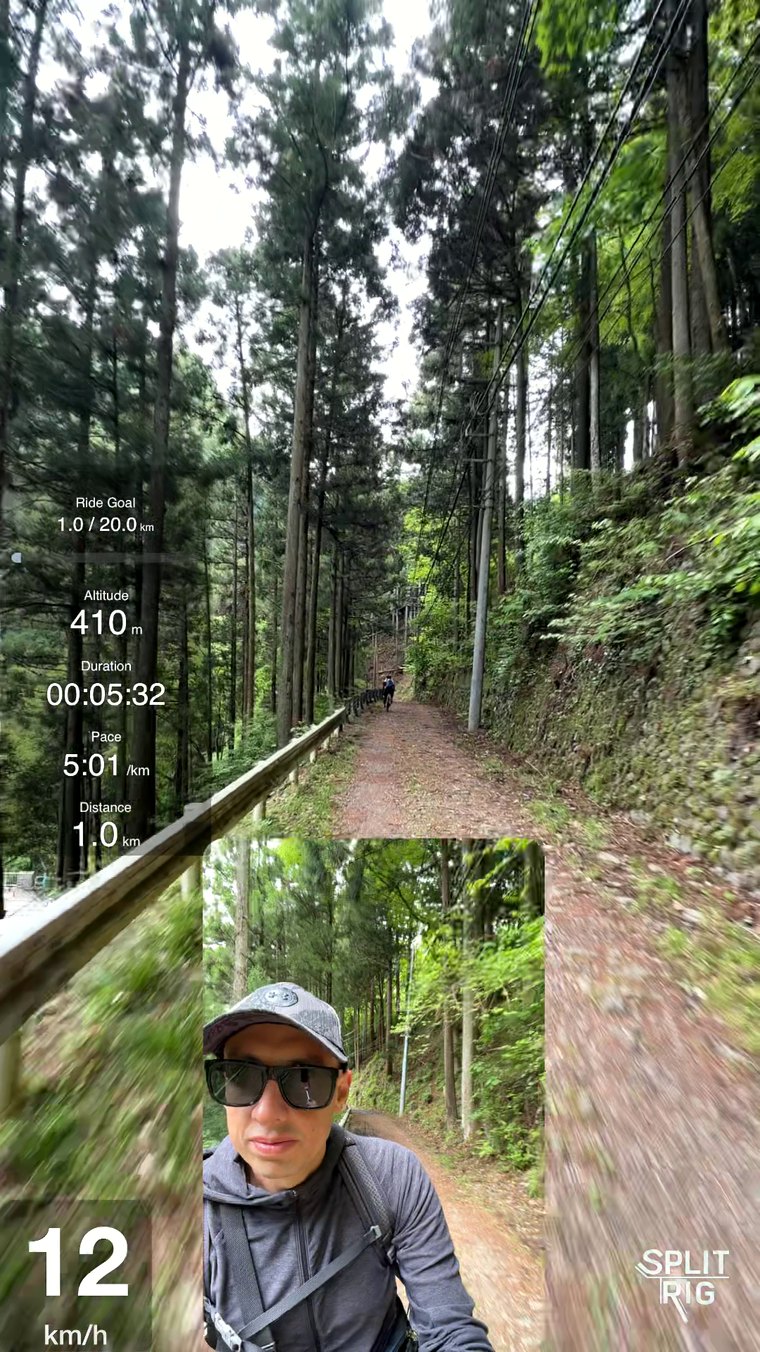
- Live overlays you can drag and resize: speedometer, distance, altitude, pace, sound level, goal gauge, SplitRig logo.
- Apple Watch companion: start/stop, change layout, change zoom, screenshot, all from your wrist.
- AirPods stem control (iOS 26 + AirPods Pro 2 / 4 / Pro 3), hands-free shutter from across the room.
- Free: every feature is unlocked the moment you open the app. No subscription, no in-app purchases, no ads, no account.
Built to stay smooth on a real phone
Recording two cameras at once is heavy work. SplitRig is a purpose-built recorder built natively for iPhone, with no editing suite running in the background, so capture stays smooth and both cameras land in one file. Camera Settings are matched to your iPhone: every option you see is one it delivers, and the front camera keeps its full quality at every rear resolution offered.
It's also built for long shoots: SplitRig sets no time limit and saves your video as it records. For a very long take, pick the Long Recording preset in Camera Settings and turn on Eco Mode.
What to check in any dual-camera app
The most common problems I've seen creators run into:
- Recording caps. Where an app limits how long you can record, that limit is usually what the upgrade removes. SplitRig has no time limit, at any resolution, and no upgrade.
- Forced watermarks. Some apps brand your video and only remove it if you subscribe. SplitRig has an optional logo, removable free in one tap. No payment, ever.
- Interrupted takes. SplitRig saves as it records, so if a take is interrupted, it is kept up to its last couple of seconds.
Both cameras, one file, nothing to edit afterwards. That is the whole workflow, and it is free on the iPhone already in your hand.
Frequently asked questions
How do I record both cameras on iPhone at the same time?
Install SplitRig free, allow camera and microphone access, pick a layout (Picture in Picture, Split Screen, Single Camera, or Face Mode) and tap the red shutter. In Picture in Picture or Split Screen, both cameras go into one video, up to 4K on the rear camera on supported iPhones, with no time limit. It works on iPhone 11 and later.
Can iPhone record both cameras at once without an app?
Only iPhone 17 and later can, using Apple's built-in Dual Capture mode in the Camera app. On iPhone 11 through iPhone 16, the stock Camera app cannot, but SplitRig adds it free, with four layouts (Picture in Picture, Split Screen, Single Camera, and Face Mode) instead of one.
How do I use the split camera (split screen) on iPhone?
Open SplitRig, tap Layout in the bottom bar, and choose Split Screen. The front and rear cameras record side by side (or stacked) in one frame, with an adjustable 30/70 to 70/30 ratio you set by dragging the divider. This is the "split camera" layout most people mean: both cameras at once, saved as a single synced video with no editing. It is free on every iPhone from iPhone 11 up.
What's the best free dual camera app for iPhone?
SplitRig is free with no in-app purchases, no subscription, and no ads. Every feature unlocks at first launch, including 4 layout modes, Action Cam at 60 fps, GPS overlays, Apple Watch companion, and AirPods remote.
Will my SplitRig recordings be compressed?
SplitRig records high-bitrate HEVC: 40 Mbps at 4K 30 fps on the rear camera of supported iPhones, 12 Mbps in 60 fps Action Cam, and 10 Mbps at Full HD 1080p 30 fps, the default. The file saves straight to your Photos, with no second compression step.